
Why is the iPhone Touch Screen Not Working?
2024-02-06 · Phone Repairs Newcastle
Why is the iPhone Touch Screen Not Working ? If you’re experiencing an unresponsive touchscreen on your iPhone, you’re not alone. This frustrating issue can occur for various reasons, ranging from simple software glitches to more complex hardware problems. In this comprehensive guide, we’ll explore the primary reasons why your iPhone touchscreen may have stopped working and provide effective solutions to fix the issue.
Common Causes of iPhone Touch Screen Unresponsiveness
There are several factors that can contribute to iPhone screen unresponsiveness. Physical damage is one of the most common causes. Accidental drops or impacts can result in a cracked or damaged display, affecting the touch sensitivity. Water damage is another culprit, as moisture can seep into the device and disrupt the touch screen functionality.
Software glitches and outdated software can also lead to screen unresponsiveness. Over time, software updates are released to fix bugs and improve performance. Failing to update your iPhone’s software can result in compatibility issues and decreased responsiveness. Additionally, malware or viruses can infiltrate your device, causing various problems including unresponsive screens.
Why is my iPhone Touch Screen unresponsive?
1. Dirty Screen
One of the most common causes of an unresponsive iPhone touchscreen is a dirty screen. Over time, dirt, debris, and oil can accumulate on the screen, interfering with its ability to detect touch input. To fix this issue, start by cleaning your iPhone’s screen using a soft, lint-free cloth. Apple recommends using a slightly damp microfiber cloth and avoiding the use of compressed air or cleaning products. Be sure to turn off your iPhone and unplug any cables before cleaning the screen.
If cleaning the screen doesn’t resolve the issue, there may be other factors at play.
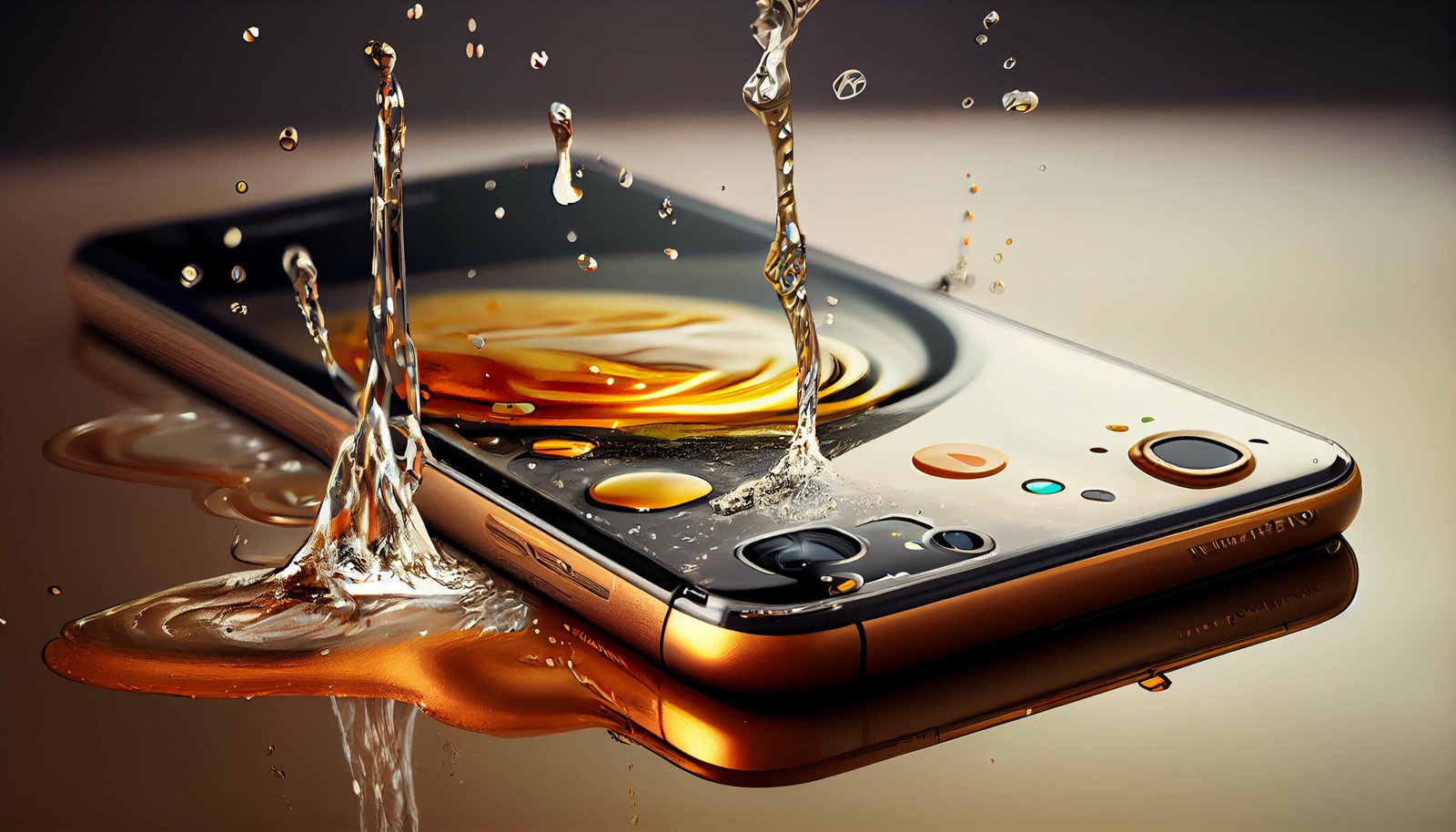
2. Water Damage
Water damage is another common cause of an unresponsive iPhone touchscreen. While newer iPhone models are designed to be water-resistant, they are not completely waterproof. Exposure to water or other liquids can damage the internal components of your iPhone, including the touchscreen.
To check for water damage, remove the SIM card tray and look for the Liquid Contact Indicators (LCIs) inside your iPhone. If the indicator is red, it indicates water damage. If you have recently spilled water on your iPhone, gently wipe it off with a soft, lint-free cloth. For liquids other than water, rinse the affected area with tap water before wiping it. You can also try drying your iPhone by placing it in a dry area with good airflow or using a fan to blow cool air into the Lightning port.
3. Low-Quality Screen Protector
If you have a screen protector installed on your iPhone, it may be the cause of the unresponsive touchscreen. Low-quality or improperly applied screen protectors can interfere with the touchscreen’s ability to detect touch input. To determine if the screen protector is causing the issue, remove it and check if the touchscreen starts working again. If it does, consider investing in a high-quality screen protector from a reputable brand.
Belkin offers reliable screen protectors that are compatible with various iPhone models. You can find these screen protectors at your nearest Apple Store or authorized resellers.
4. Accessories Connected to the Lightning Port
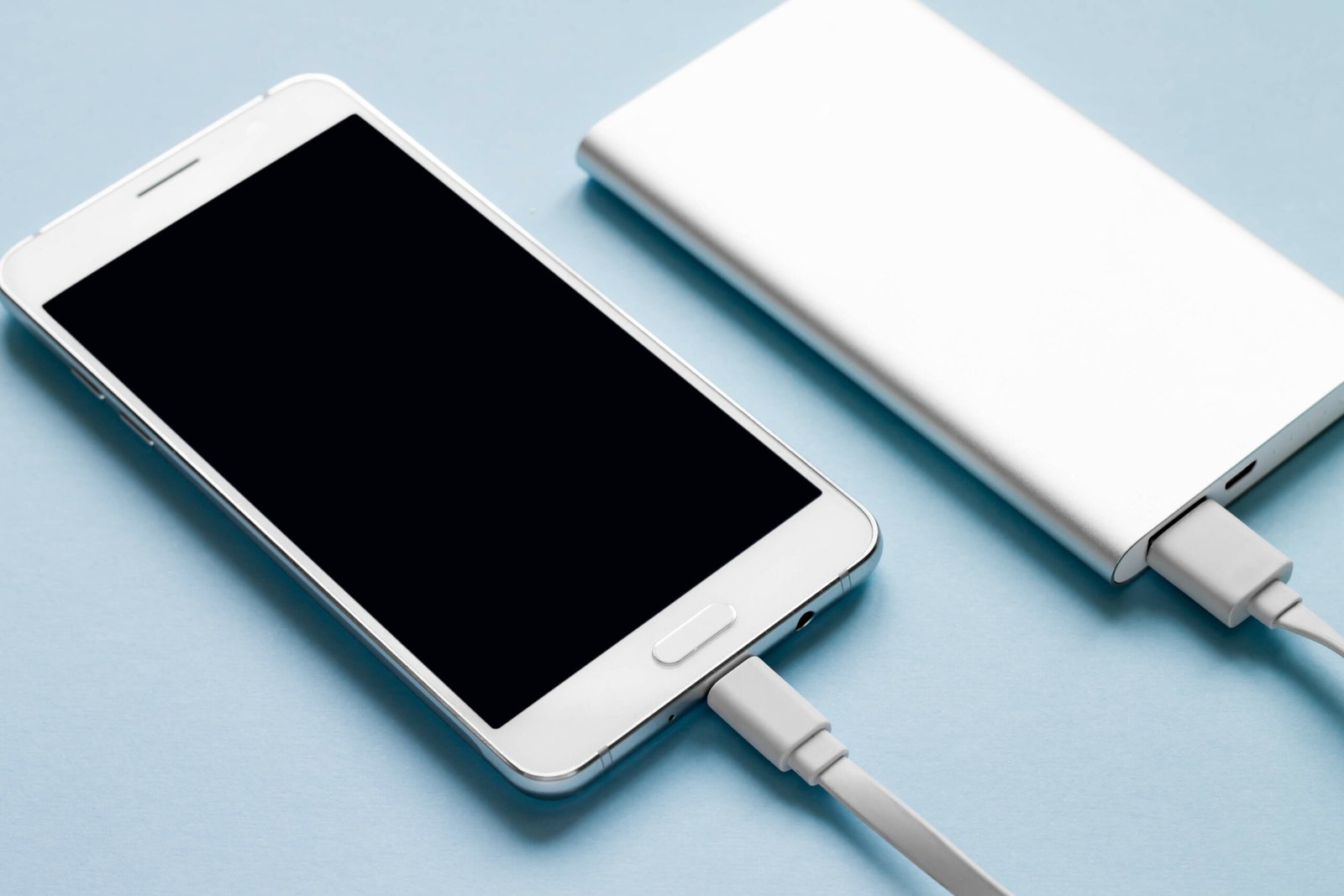
In some cases, accessories connected to the Lightning port of your iPhone can interfere with the touchscreen’s responsiveness. If you have any accessories, such as chargers, headphones, or power banks, connected to your iPhone, disconnect them and check if the touchscreen starts working properly. Also, try using a different outlet, cable, and charger to rule out any issues with the accessories. If the touchscreen remains unresponsive with no accessories connected, consider reaching out to Apple Support for further assistance.
5. Temperature Extremes
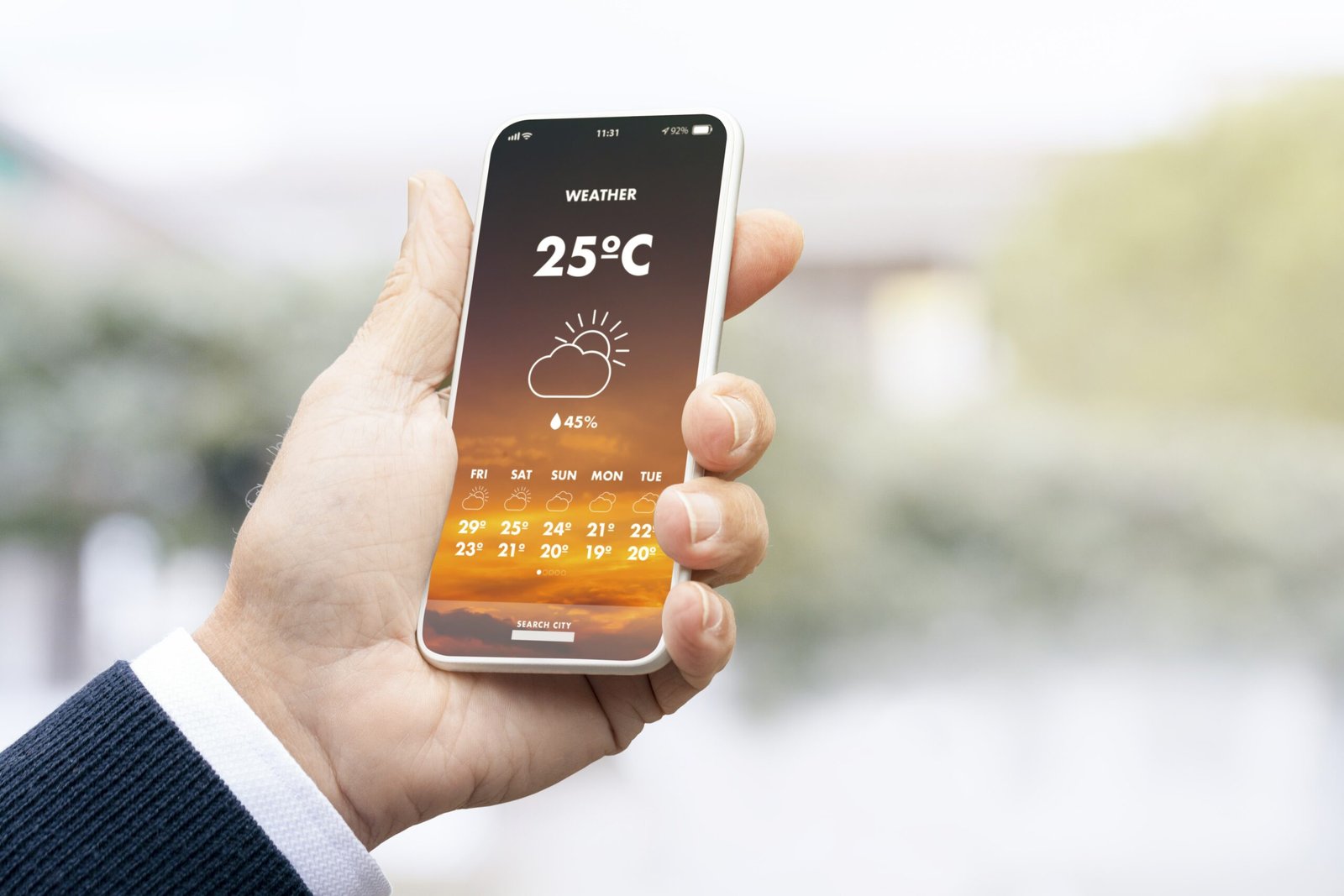
Extreme temperatures can affect the performance of your iPhone’s touchscreen. If your iPhone becomes too hot or too cold, it may lead to an unresponsive touchscreen. High temperatures can cause the display to dim or go black as a protective measure, while low temperatures can cause the device to turn off or become unresponsive.
To resolve this issue, allow your iPhone to return to its normal operating temperature. If your iPhone is too hot, move it to a cooler place, away from direct sunlight. If it’s too cold, keep it in a warmer environment, such as your pocket or a bag wrapped in a warm cloth. Avoid exposing your iPhone to extreme temperatures for prolonged periods.
6. Pressure from Phone Case
Believe it or not, your iPhone case could be the reason behind the unresponsive touchscreen. A tight or poorly designed case can exert pressure on the screen, leading to responsiveness issues. Even well-fitted cases have been reported to cause this problem.
To troubleshoot this issue, remove the case from your iPhone and check if the touchscreen starts working properly. If it does, consider using a different case or opting for alternative forms of protection, such as corner protectors or sleeves.
7. Temporary Software Glitches
Software glitches can occasionally cause the iPhone touchscreen to become unresponsive. Restarting your iPhone can often resolve these temporary issues. To restart your iPhone, follow these steps:
- Press and hold the power button until the slider appears.
- Drag the slider to turn off your iPhone.
- After a few seconds, press and hold the power button again until the Apple logo appears.
- Release the power button, and your iPhone will restart.
If the touchscreen issue persists even after restarting, it’s essential to ensure that your iPhone’s software is up to date. Apple regularly releases iOS updates that address software bugs and improve device performance. To check for updates, go to Settings > General > Software Update. If an update is available, download and install it on your iPhone.
In rare cases where the touchscreen remains unresponsive, you may need to restore your iPhone using iTunes or Finder. Before performing a restore, make sure you have a recent backup of your iPhone’s data. Restoring your iPhone will erase all data on the device, so it’s crucial to have a backup to recover your information.
Also check: How Long Should an iPhone Take To Charge
Hardware Issues that Affect iPhone Screen Responsiveness
Several hardware issues can impact the responsiveness of your iPhone’s screen. A damaged display is a common problem that can occur due to physical damage or wear and tear over time. Loose or disconnected cables inside the device can also lead to screen unresponsiveness. These cables connect the display to the logic board, and any disconnection or looseness can disrupt the touch functionality.
Another hardware component that affects screen responsiveness is the touch screen digitizer. This digitizer translates touch inputs into commands for the device. If it becomes faulty or damaged, it can result in an unresponsive screen. Additionally, battery issues such as low power or degradation can impact the overall performance of your iPhone, including its touch sensitivity.
Software Issues that Affect iPhone Screen Responsiveness
| Software Issues that Affect iPhone Screen Responsiveness | Metrics |
| App crashes | Number of crashes per day/week/month |
| Software updates | Frequency of updates and impact on screen responsiveness |
| Background processes | Number of processes running in the background and impact on screen responsiveness |
| Memory usage | Amount of memory used by apps and impact on screen responsiveness |
| Battery life | Impact of low battery on screen responsiveness |
Software-related problems can also contribute to iPhone screen unresponsiveness. Outdated software can lead to compatibility issues with certain apps or features, causing the screen to become unresponsive. Malware or viruses can also infect your device and interfere with its normal functioning, including the touch screen responsiveness.
App conflicts can arise when multiple applications are running simultaneously and conflicting with each other. This can cause the screen to freeze or become unresponsive. Corrupted system files can also result in screen unresponsiveness, as these files are essential for the proper functioning of your iPhone’s software.
Check out: Do iPads Have USB Ports
Solutions to Fix the iPhone Touchscreen Not Working Issue
Solution 1: Restart Your iPhone
A simple restart can often resolve minor software glitches that may be causing the unresponsiveness of your iPhone touchscreen. Here’s how you can restart your device:
- Press and hold the right-side button and either of the volume buttons until the “Slide to power off” control appears.
- Drag the slider from left to right to turn off your device.
- Wait for at least 30 seconds, and then press and hold the right-side button until the Apple logo appears.
- Once the device boots up, swipe up or press the home button and enter your passcode to unlock your device.
Solution 2: Force Restart Your iPhone
If your touchscreen is completely unresponsive and you’re unable to perform a regular restart, a force restart may do the trick. The process varies depending on your iPhone model:
For iPhone 8, iPhone SE, or an iPhone with Face ID:
- Press and quickly release the volume down button.
- Press and hold the right-side button until the Apple logo appears.
- Release the side button and wait for your device to boot up.
For iPhone 7
- Press and hold the volume down button and the right-side button simultaneously.
- Keep holding both buttons until the Apple logo appears.
- Release both buttons and wait for your device to restart.
For iPhone SE (2016) or iPhone 6s or earlier models:
- Press and hold the home button and the right-side or top-corner button simultaneously.
- Keep holding both buttons until the Apple logo appears.
- Release both buttons and wait for your device to boot up.
Solution 3: Check Your Screen Protector and Clean Your Screen
In some cases, an improperly applied or incompatible screen protector can affect the touchscreen’s responsiveness. Follow these steps to ensure your screen protector is not causing the issue:
Check if your screen protector has been properly applied. If not, remove it and reapply it correctly. If you notice any damage, consider replacing it with a new one.
Even if your screen protector is properly applied, try removing it temporarily to see if the touchscreen starts working normally. If it does, consider using a thinner screen protector or going without one.
Clean your screen with a dry microfiber cloth to remove any dirt or dust particles. This can help improve touch sensitivity.
Solution 4: Disconnect Wired Accessories
In rare cases, connected wired accessories like headphones or chargers can interfere with the touchscreen functionality. Disconnect any accessories connected to your iPhone and see if the touchscreen works properly. After disconnecting the accessories, restart your iPhone and check if the issue persists.
Solution 5: Update Your iPhone
Running an outdated version of iOS can sometimes cause touchscreen issues. Updating your iPhone to the latest iOS version can fix these software-related problems. Here’s how you can update your iPhone:
- Connect your iPhone to your computer using a Lightning or USB-C cable.
- If you’re using a Mac with macOS Catalina 10.15 or higher, launch Finder. For macOS Mojave 10.14 or earlier, or Windows, launch iTunes.
- If your iPhone appears in the sidebar of Finder or iTunes, select it. Then, click on the “Update” button to download and install the latest iOS update.
If it’s your first time connecting your iPhone to this computer, you may need to “Trust” the computer by tapping on the prompt on your iPhone screen. Follow the on-screen instructions to proceed with the update.

Solution 6: Put your iPhone into “Recovery” mode
If your touchscreen is completely unresponsive and you’re unable to interact with your iPhone to update it, you can try putting your device into “Recovery” mode. Here’s how:
- Connect your iPhone to your computer.
- Force restart your iPhone using the appropriate method for your specific iPhone model.
- Instead of seeing the Apple logo, you should see a recovery mode screen on your iPhone.
- A window should pop up on your computer, indicating that an iPhone in recovery mode has been detected. Select “Update” to download and install the latest iOS version.
Solution 7: Factory Reset Your iPhone
If none of the above solutions work, performing a factory reset can help resolve persistent software issues. However, keep in mind that this will erase all data on your iPhone. Before proceeding with a factory reset, make sure to back up your important files. Here’s how you can factory reset your iPhone:
- Go to the “Settings” app on your iPhone.
- Tap on “General” and scroll down to find “Reset”.
- Select “Erase All Content and Settings”.
- Follow the on-screen instructions to confirm the reset and enter your passcode if prompted.
- Your iPhone will erase all data and settings, returning it to its original factory state.
After the reset, follow the on-screen instructions to set up your iPhone as a new device or restore from a backup.
Solution 7: Contact Professional Repair Service To solve The iPhone Touchscreen Not Working
If none of the above solutions work and your iPhone touchscreen is still unresponsive, it’s time to seek professional help. Contact the professional repairs for iPhone touchscreen “PRN” for your device to be examined by experts. They can diagnose any hardware-related issues and provide appropriate solutions or repairs.
Experiencing an unresponsive touchscreen on your iPhone can be frustrating, but there are several potential solutions to resolve the issue. By following the steps outlined in this guide, you can troubleshoot and fix the problem effectively. Start with simple solutions like cleaning the screen and removing accessories, and gradually move towards more advanced troubleshooting methods if necessary. If all else fails, consider reaching out to Apple Support or visiting an Apple Store for further assistance.
Remember, prevention is better than cure. Take proactive measures to protect your iPhone from water damage, extreme temperatures, and unnecessary pressure. Keep your software up to date and invest in high-quality accessories and screen protectors to maintain optimal touchscreen performance.
By following these guidelines, you can ensure that your iPhone touchscreen remains responsive and functional, allowing you to enjoy the full potential of your device.
PK|23102080|1:30|CON